Embarking on the journey to transform your beloved watercolor paintings into high-quality prints begins with understanding the art of digitization. This comprehensive guide will illuminate the essential steps, from selecting the right equipment to mastering image preparation, ensuring your traditional artwork translates beautifully into the digital realm for reproduction.
We will explore why artists choose to preserve their traditional creations through digital means, the advantages of having a digital archive, and the specific objectives behind digitizing watercolor art for both personal enjoyment and commercial ventures. Our aim is to equip you with the knowledge to confidently prepare your watercolors for printing, maintaining their original charm and detail.
Understanding the Importance of Digitizing Watercolor Paintings
In the realm of art, traditional mediums like watercolor offer a unique tactile and visual experience. However, to extend the reach and longevity of these beautiful creations, artists increasingly turn to digital reproduction. Digitizing watercolor paintings unlocks a world of possibilities, allowing for wider dissemination, preservation, and commercial viability. This process bridges the gap between the physical artwork and the digital landscape, ensuring that the essence of the watercolor remains vibrant and accessible.The decision to digitize a watercolor painting is driven by a desire to share its beauty beyond the confines of a physical exhibition or personal collection.
It is about making art more accessible, preserving its delicate nature for future generations, and opening avenues for creative expansion and financial opportunity. The benefits extend from practical considerations like storage and damage prevention to strategic advantages in marketing and sales.
Reasons for Digitizing Watercolor Art
Artists choose to digitize their watercolor paintings for a multitude of strategic and practical reasons. This digital transformation is not merely about making a copy; it is about empowering the artwork with new capabilities and ensuring its enduring presence.
- Print Reproduction: Digitization is the fundamental step for creating high-quality prints of watercolor paintings. This allows artists to offer their work in various sizes and formats, reaching a broader audience than original pieces alone can accommodate. The digital file serves as the master template for professional printing services.
- Archival Preservation: Traditional artworks, especially delicate mediums like watercolor, are susceptible to fading, damage from light, humidity, and the passage of time. A high-resolution digital scan or photograph acts as a perfect archival backup, safeguarding the artwork against potential loss or degradation.
- Online Presence and Sales: In today’s digital age, an online presence is crucial for artists. Digitized artworks can be showcased on personal websites, online galleries, and e-commerce platforms, enabling global reach and sales without the logistical challenges of shipping originals.
- Licensing and Commercial Use: A digital copy allows artists to license their artwork for various commercial purposes, such as book covers, greeting cards, textiles, or digital designs. This expands income streams and introduces the artwork to new markets.
- Creative Exploration: Digital files can be manipulated for further creative projects, such as creating digital collages, incorporating elements into digital paintings, or experimenting with different color palettes and effects without altering the original artwork.
Benefits of Digital Copies
Possessing a digital copy of a traditional watercolor painting offers a significant advantage in terms of versatility, accessibility, and security. These benefits empower artists to leverage their work in ways that are simply not possible with the physical piece alone.
- Wider Audience Reach: Digital images can be shared instantly across the internet, reaching potential collectors and admirers worldwide. This transcends geographical limitations and allows for a global audience to experience the artwork.
- Reduced Risk of Damage: Handling and transporting original artworks carry inherent risks of damage. A digital copy means that the artwork can be shared and reproduced without ever needing to expose the original to potential harm.
- Cost-Effective Reproduction: While creating the initial digital file has its costs, producing prints from a digital master is significantly more cost-effective than creating multiple original pieces. This allows for more accessible price points for collectors.
- Portfolio Development: A digital portfolio of an artist’s work is essential for applications to galleries, grants, and exhibitions. High-quality digital reproductions ensure that the artwork is presented in its best possible light.
- Personal Archiving: For personal collections, a digital record serves as a detailed inventory and a way to share cherished pieces with family and friends, even if the original is stored securely or is part of a larger collection.
Primary Goals of Digitizing Watercolor Art
The fundamental objectives behind digitizing watercolor paintings are multifaceted, aiming to enhance the artwork’s utility, longevity, and market potential. Whether for personal enjoyment or commercial enterprise, the underlying goals remain consistent: to capture and reproduce the essence of the original piece in a format that offers maximum benefit.The primary goals can be broadly categorized into two main areas:
- Commercial Applications: This encompasses all activities aimed at generating revenue or expanding the market reach of the artwork. The digital file becomes a product in itself, enabling various business models.
- Facilitating print-on-demand services and limited-edition print sales.
- Enabling licensing agreements for commercial products and publications.
- Supporting online sales through e-commerce platforms and artist websites.
- Creating marketing materials for exhibitions, portfolios, and promotional campaigns.
- Personal and Archival Purposes: This focuses on preserving the artwork and making it accessible for personal enjoyment, documentation, and legacy.
- Creating a secure backup against potential damage or loss of the original.
- Sharing the artwork with friends and family digitally.
- Documenting the artwork for personal records, insurance purposes, or future reference.
- Using the digital file for personal creative projects or digital art experimentation.
“The digital reproduction of art ensures that the ephemeral beauty of watercolor can transcend its physical limitations, offering enduring accessibility and diverse avenues for appreciation and commerce.”
Essential Equipment and Software for Digitization
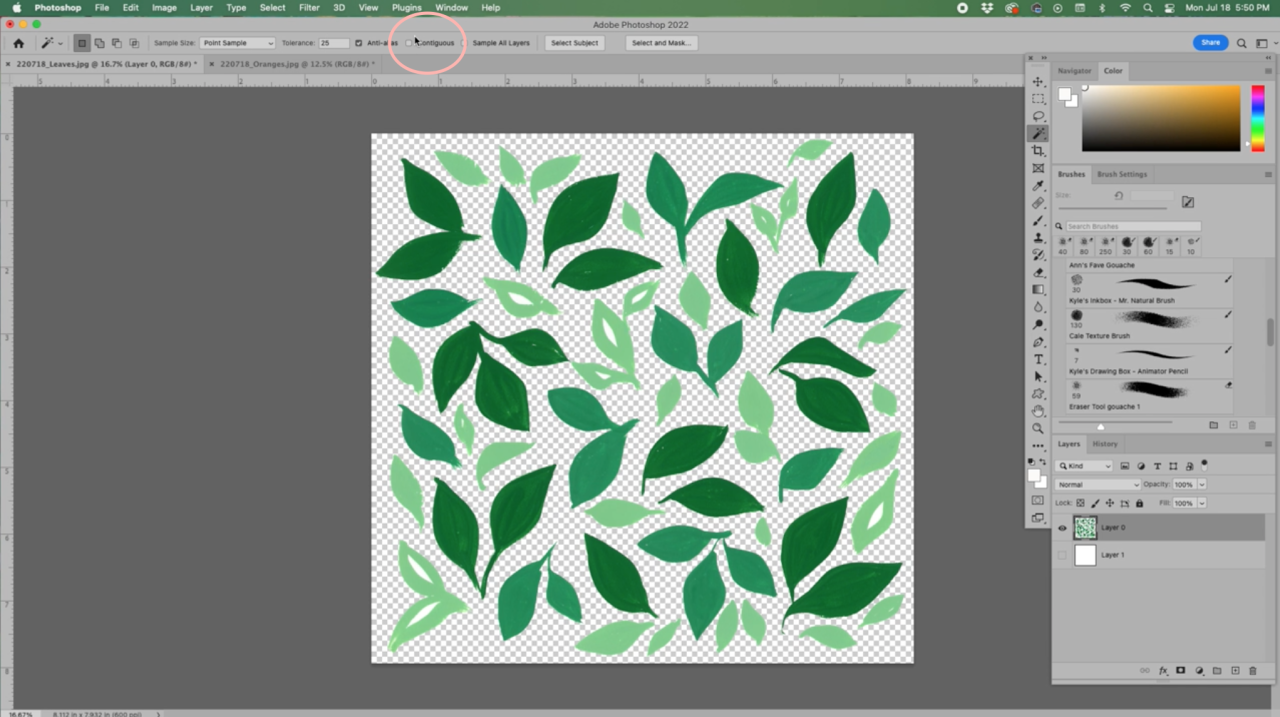
To effectively digitize your watercolor paintings and prepare them for printing, having the right tools is paramount. This section will guide you through the essential hardware and software needed to capture your artwork with fidelity and ensure it translates beautifully into a printed format. Investing in quality equipment will significantly impact the final output, preserving the nuances of your original watercolors.Understanding the capabilities of different equipment and software will empower you to make informed decisions that align with your budget and desired quality standards.
Whether you are a hobbyist or a professional artist, the right setup will make the digitization process smoother and more rewarding.
Hardware for Capturing High-Quality Watercolor Scans or Photographs
Capturing the essence of your watercolor paintings requires equipment that can accurately represent color, detail, and texture. The choice between scanning and photography depends on your artwork’s size, your budget, and the level of detail you aim to preserve.For smaller to medium-sized artworks, a high-resolution flatbed scanner is often the most accessible and effective tool. For larger pieces or when a truly professional result is desired, professional photography setups become more suitable.
Flatbed Scanners
Flatbed scanners are designed to lay artwork directly onto a glass surface, providing a flat, consistent capture. Key specifications to look for include optical resolution, color depth, and the ability to scan at a good size.
- Optical Resolution: Measured in dots per inch (DPI), a higher optical resolution captures finer details. For watercolors, a minimum of 600 DPI is recommended, with 1200 DPI or higher being ideal for detailed work and for allowing for significant enlargement.
- Color Depth: This refers to the number of colors the scanner can distinguish. A 48-bit color depth (or higher) is preferable as it captures a wider range of subtle color variations present in watercolors, preventing banding and ensuring accurate color reproduction.
- Scanning Bed Size: Ensure the scanner’s bed is large enough to accommodate your typical artwork sizes without cropping.
- Light Source: LED or CCFL light sources are common. Look for scanners that provide even illumination across the scanning bed to avoid shadows or hotspots.
Professional Photography Setup
For larger artworks or when a scanner’s limitations are apparent, professional photography offers greater flexibility. This method involves using a high-quality camera and controlled lighting to capture an image of your painting.
- Camera: A DSLR or mirrorless camera with a good sensor and interchangeable lenses is recommended. A resolution of 20 megapixels or higher is beneficial for capturing intricate details.
- Lens: A prime lens (fixed focal length) often offers better sharpness and less distortion than zoom lenses. A macro lens can be useful for capturing very fine details.
- Tripod: A sturdy tripod is essential for keeping the camera perfectly still, ensuring sharp images, especially in lower light conditions or when using slower shutter speeds.
- Lighting: Consistent, diffused lighting is crucial. Two lights positioned at 45-degree angles to the artwork, equidistant from the center, are a common setup to minimize glare and shadows. Softboxes or diffusion panels can help achieve this. Natural daylight, if indirect and consistent, can also be used but is harder to control.
- Color Calibration Tools: A color checker card or gray card placed in the frame during the shoot helps in accurate color correction during post-processing.
Recommended Software for Image Editing and Preparation for Printing
Once your watercolor painting is digitized, image editing software is indispensable for refining the image, correcting colors, and preparing it for print. The software you choose will depend on your operating system, budget, and the complexity of edits you need to perform.
Image Editing Software
These programs allow for detailed manipulation of your scanned or photographed artwork.
- Adobe Photoshop: The industry standard for professional image editing. It offers unparalleled tools for color correction, retouching, sharpening, and file format manipulation. While it has a subscription cost, its capabilities are extensive.
- Adobe Lightroom: Excellent for organizing and making global adjustments to your images, particularly color and exposure. It integrates well with Photoshop and is ideal for managing large libraries of artwork.
- GIMP (GNU Image Manipulation Program): A powerful, free, and open-source alternative to Photoshop. It offers a comprehensive set of tools for image editing and is a great option for those on a budget.
- Affinity Photo: A one-time purchase professional photo editor that rivals Photoshop in many aspects. It provides advanced tools for retouching, compositing, and color correction.
- Procreate (for iPad): While primarily a drawing and painting app, Procreate also offers robust editing capabilities, including color adjustments and exporting in various formats, making it suitable for artists who work on an iPad.
Software for Color Correction and Proofing
Accurate color representation is vital for watercolor prints. These tools and techniques are essential.
- Color Balance and Levels: Tools within editing software that allow you to adjust the overall color cast of an image and the distribution of light and dark tones.
- Hue/Saturation Adjustments: Used to fine-tune specific colors and their intensity.
- White Balance Correction: Crucial for ensuring whites appear neutral and colors are not skewed by the lighting conditions during capture.
- Soft Proofing: A feature in some software (like Photoshop and Lightroom) that simulates how your image will look when printed on a specific type of paper with a particular printer and ink set. This helps anticipate and correct color shifts before printing.
Comparison of Different Scanning Methods for Watercolor
The method you choose to digitize your watercolor painting will significantly influence the final quality of your digital file and, consequently, your prints. Both flatbed scanning and professional photography have distinct advantages and disadvantages when applied to watercolor artwork.
Flatbed Scanner Suitability for Watercolor
Flatbed scanners excel at capturing detailed, flat artwork. For watercolors, this means they can reproduce the paper’s texture and the paint’s subtle gradations quite effectively, provided the scanner has adequate resolution and color depth.
- Advantages:
- Consistency: Provides a uniform light source and flat surface, minimizing inconsistencies.
- Detail Capture: High-resolution scanners can capture fine brushstrokes and paper texture.
- Ease of Use: Generally straightforward to operate for most users.
- Cost-Effective: Many good quality flatbed scanners are available at reasonable price points.
- Disadvantages:
- Size Limitations: Artwork must fit entirely on the scanner bed, making it unsuitable for very large pieces.
- Potential for Glare: Glossy mediums or certain paper finishes can cause reflections on the glass.
- Depth of Field: May not capture the full three-dimensionality of very textured paintings.
Professional Photography Suitability for Watercolor
Professional photography offers a more versatile approach, especially for larger works or when aiming for the highest fidelity. It allows for greater control over lighting and perspective.
- Advantages:
- Scalability: Can capture artworks of any size.
- Lighting Control: Allows for precise adjustment of light to minimize glare and highlight texture.
- Dimensionality: Can better capture the subtle textures and impasto effects in a painting.
- Flexibility: Can be done on-site or in a studio with minimal equipment disruption.
- Disadvantages:
- Requires Expertise: Setting up professional lighting and achieving consistent results demands skill and practice.
- Equipment Investment: High-quality cameras, lenses, and lighting can be expensive.
- Environmental Factors: Dependent on stable conditions (no movement, consistent light).
- Post-Processing Intensity: Often requires more intensive color correction and retouching to match the original.
The goal of digitization is to create a digital representation that is as close to the original artwork as possible, capturing its colors, textures, and nuances accurately.
The choice between scanning and photography should be guided by the specific needs of your artwork and your resources. For most artists beginning to digitize their watercolors, a good quality flatbed scanner is an excellent starting point. As your needs grow and your artwork becomes larger or more complex, investing in a professional photography setup becomes a logical progression.
Capturing Your Watercolor Artwork
Digitizing your watercolor paintings is a crucial step in preparing them for printing. The quality of your digital capture directly impacts the final print’s fidelity to the original artwork. This section will guide you through the best practices for scanning your watercolors to ensure vibrant colors, accurate details, and a true representation of your artistic vision.Achieving a high-quality scan requires attention to detail in both the setup and the execution of the scanning process.
Understanding your scanner’s capabilities and applying the correct settings are paramount to preserving the delicate nuances of watercolor.
Scanner Bed and Artwork Preparation
Proper preparation of your scanner and the artwork itself is essential for a clean and accurate digital capture. This minimizes unwanted artifacts and ensures that the scanner can read the surface of the paper effectively.Before placing your artwork on the scanner, ensure the glass surface is immaculately clean. Dust, fingerprints, or stray fibers can appear as prominent blemishes in your digital file, requiring extensive retouching later.
Use a lint-free cloth and an appropriate glass cleaner, such as an ammonia-free solution, to wipe down the scanner bed.For the artwork, ensure it is completely dry. Any residual moisture can affect the paper’s texture and potentially damage the scanner. If your painting is framed, remove it from the frame, including the glass and matting, to scan the artwork directly.
Optimal Scanning Settings for Watercolor
Selecting the correct settings on your scanner is vital for preserving the color accuracy and intricate details of your watercolor paintings. Different scanners and software offer a range of options, but focusing on a few key settings will yield the best results.The resolution, or DPI (dots per inch), is one of the most critical settings. For high-quality prints, a minimum of 300 DPI is recommended.
However, for larger prints or if you anticipate needing to crop significantly, scanning at 600 DPI or even higher can provide more flexibility without sacrificing detail. Higher DPI scans result in larger file sizes, so balance this with your storage capacity and intended use.Color depth is another important consideration. Scanning in 24-bit or 48-bit color (RGB) captures a wider range of colors and subtle tonal variations than lower bit depths.
This is particularly important for the rich and often translucent hues found in watercolor.Ensure that any automatic color correction or enhancement features in your scanner software are turned off. These automatic adjustments can often alter the original colors of your artwork, leading to an inaccurate digital representation. You will have more control over color adjustments in dedicated image editing software.
For print purposes, always aim for a resolution of at least 300 DPI, and consider 600 DPI for maximum flexibility.
Handling Textured Watercolor Paper
Textured watercolor paper, with its inherent bumps and valleys, can present a challenge during the scanning process. The scanner’s light may not reach all parts of the paper evenly, potentially leading to shadows or loss of detail in the textured areas.To mitigate this, ensure the artwork is laid as flat as possible on the scanner bed. Gently press down on the edges of the paper to prevent curling.
Some scanners have a lid that closes down, which can help apply a slight, even pressure. If your scanner has a depth-of-field adjustment, experiment with it, although for flat artwork, this is less critical.Another technique is to perform multiple scans at slightly different angles or with different lighting (if your scanner allows) and then blend them in post-processing. However, for most standard flatbed scanners, careful placement and ensuring the paper is taut are the most effective initial steps.
Step-by-Step Scanning Procedure
Following a systematic approach ensures consistency and maximizes the quality of your scanned artwork.
- Clean the Scanner Bed: Thoroughly clean the scanner glass with a lint-free cloth and appropriate cleaner.
- Prepare the Artwork: Ensure the watercolor painting is completely dry and remove it from any frame or matting.
- Position the Artwork: Carefully place the artwork face down onto the scanner bed, aligning it as desired. Ensure it lies as flat as possible.
- Configure Scanner Settings: Open your scanner’s software and set the resolution (e.g., 300-600 DPI), color depth (e.g., 24-bit or 48-bit RGB), and disable any automatic color correction features. Select the correct document type (e.g., photo or artwork).
- Preview Scan: Perform a preview scan to check the positioning and initial quality. Make any necessary adjustments to the artwork placement or scan area.
- Perform the Full Scan: Initiate the full scan with your chosen settings.
- Save the File: Save the scanned image in a lossless format, such as TIFF, to preserve maximum image quality. Use a descriptive file name.
Capturing Your Watercolor Artwork: Photography Techniques
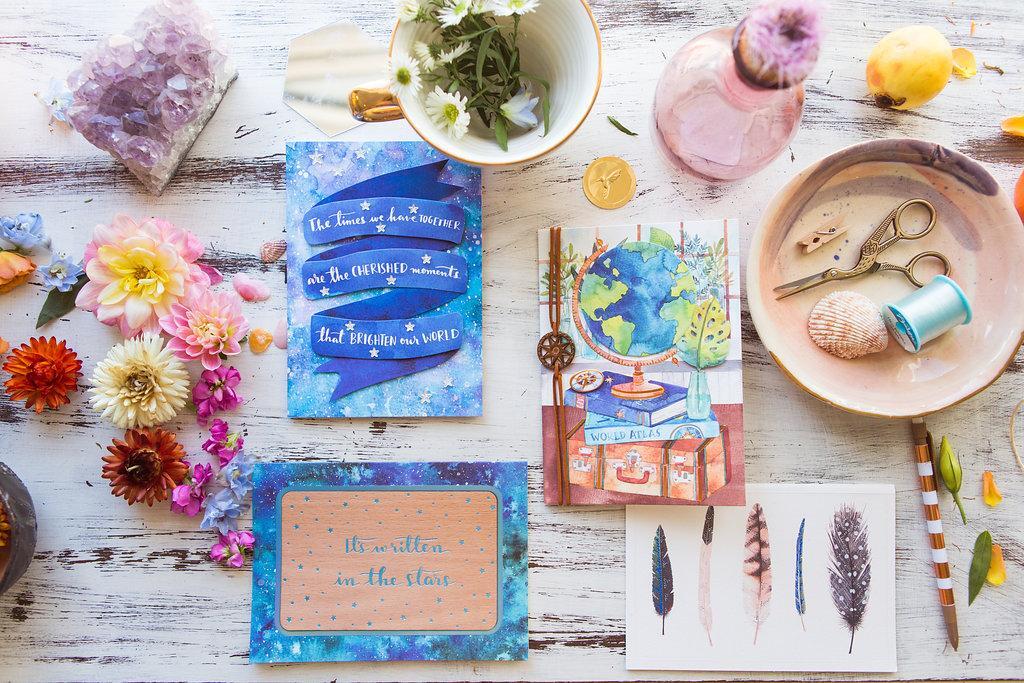
Successfully digitizing your watercolor paintings begins with capturing the original artwork accurately. This stage is crucial for translating the delicate textures, vibrant colors, and subtle washes of watercolor into a digital format that can be reproduced faithfully. Achieving this requires attention to detail in lighting, camera settings, and stability.The goal of photography is to create a digital representation that is as close to the physical painting as possible, minimizing any loss of detail or alteration of color.
This involves understanding how light interacts with the pigments and paper, and how to control your camera to record that interaction effectively.
Lighting Setups for Watercolor Photography
Proper lighting is paramount to avoid glare and distortion, ensuring that the true essence of your watercolor artwork is captured. The right lighting will highlight the texture of the paper and the luminosity of the paints without creating distracting reflections or shadows.Several lighting setups can be employed to achieve professional-quality results:
- Natural Daylight (Indirect): This is often the preferred method for its color accuracy and soft diffusion. Position your artwork near a window on an overcast day or during the “golden hour” (shortly after sunrise or before sunset). Avoid direct sunlight, which can cause harsh shadows and blown-out highlights.
- Artificial Lighting (Softbox/Diffused Light): If natural light is inconsistent or unavailable, artificial lighting with diffusers is an excellent alternative. Use two identical light sources placed at a 45-degree angle to the artwork, one on each side. This creates even illumination and minimizes shadows. Softboxes are ideal for diffusing the light, creating a more gentle and uniform spread.
- Avoiding Glare: Glare occurs when light reflects directly off the surface of the painting, obscuring details. Experiment with the angle of your lights and the position of your camera. Sometimes, slightly angling the painting itself can help direct reflections away from the lens. Using a polarizing filter on your camera lens can also significantly reduce surface glare.
Camera Settings and Angles for Effective Watercolor Photography
Optimizing your camera settings and choosing the correct angle will ensure that every detail of your watercolor painting is rendered with clarity and fidelity. The aim is to capture a sharp image with accurate color representation.Consider the following settings and angles for optimal results:
- Camera Angle: Always position your camera directly in front of the artwork, perpendicular to its surface. This is crucial to avoid any distortion of perspective or shape. If the painting is mounted on a wall, ensure it is perfectly level.
- Aperture (f-stop): Use a moderate aperture, such as f/8 or f/11. This setting provides a good depth of field, ensuring that the entire painting is in sharp focus from edge to edge. A very wide aperture (low f-number) might result in the edges being slightly out of focus, while a very narrow aperture (high f-number) can lead to diffraction, reducing overall sharpness.
- ISO: Keep your ISO setting as low as possible, ideally at 100 or 200. Higher ISO settings introduce digital noise, which can degrade the quality of your image, especially in the subtle tones of watercolor.
- Shutter Speed: The shutter speed will depend on your lighting conditions and aperture. Since you’ll be using a tripod, you can afford slower shutter speeds without introducing camera shake. The goal is to achieve a proper exposure without resorting to high ISO.
- White Balance: Set your white balance to match your lighting conditions (e.g., Daylight, Cloudy, Tungsten, or Custom). If shooting under artificial lights, using a gray card or a white object in the frame and setting a custom white balance can yield the most accurate colors.
- File Format: Always shoot in RAW format if your camera allows. RAW files capture more image data than JPEGs, providing greater flexibility for editing and color correction later without significant loss of quality.
Using Tripods and Remote Shutters for Sharp, Blur-Free Images
To achieve the crisp, detailed images necessary for high-quality prints, camera stability is non-negotiable. Tripods and remote shutters are essential tools that eliminate the common causes of blur: camera shake and accidental shutter press.The benefits of using these accessories are significant:
- Tripod Stability: A sturdy tripod anchors your camera firmly in place, preventing any movement during the exposure. This is particularly important when using slower shutter speeds necessitated by optimal aperture and ISO settings. Without a tripod, even the slightest hand tremor can result in a blurry image, especially when photographing fine details in watercolor.
- Remote Shutter Release: Pressing the camera’s shutter button directly can introduce subtle vibrations that cause blur. A remote shutter release, whether wired, wireless, or using your camera’s self-timer function, allows you to trigger the shutter without touching the camera. This ensures that the camera remains perfectly still throughout the entire capture process.
- Consistent Framing: A tripod also helps maintain consistent framing between multiple shots, which can be useful if you need to take several captures for different purposes or for later stitching if your artwork is larger than your camera’s field of view.
Image Preparation: Editing and Enhancement
Once your watercolor artwork is digitized, the digital file is your raw material. The next crucial step is to prepare this image for printing, ensuring that the vibrancy, detail, and unique qualities of your original painting are faithfully translated into the digital realm. This phase involves meticulous editing and enhancement to achieve a professional and aesthetically pleasing result.The goal of image preparation is to refine the digitized artwork to match the original as closely as possible, or even to enhance its visual appeal for print.
This process requires a systematic approach to color, detail, and any minor imperfections that may have been captured.
Color Correction and White Balance Adjustment
Accurate color representation is paramount when digitizing traditional artwork. Variations in lighting during the capture process, or the limitations of scanner or camera sensors, can lead to color shifts. Establishing a consistent workflow for color correction and white balance ensures that the digitized image accurately reflects the hues and tones of your original watercolor.A typical workflow involves the following steps:
- Initial Assessment: Compare the digitized image side-by-side with the original painting under neutral lighting conditions. Note any discrepancies in color, brightness, or contrast.
- White Balance Adjustment: Use your image editing software’s white balance tools to neutralize any color casts. This can often be achieved by selecting a neutral gray or white area in the image (if present) or by using eyedropper tools to sample specific colors. The aim is to make whites appear white and grays appear neutral.
- Color Balance and Saturation: Adjust the overall color balance to correct for dominant color casts that may persist after white balance. Fine-tune saturation levels to bring out the richness of your watercolors without making them appear artificial. Be mindful of not over-saturating, which can lead to a loss of subtle nuances.
- Levels and Curves: Utilize the Levels and Curves adjustment tools to control the tonal range of the image. This allows you to deepen shadows, brighten highlights, and enhance mid-tones, ensuring a good dynamic range that mirrors the original painting.
“The truest representation of your watercolor in print begins with accurate color and tone.”
Sharpening and Noise Reduction
Watercolor paintings often possess delicate textures and fine details that can be lost during the digitization process. Sharpening techniques help to bring these details back into focus, while noise reduction addresses any graininess or digital artifacts that may have been introduced.The process of enhancing detail and minimizing unwanted noise is as follows:
- Sharpening: Apply sharpening filters judiciously. Over-sharpening can create unnatural halos around edges and diminish the soft, organic feel of watercolor. Start with subtle sharpening and increase gradually, examining the results at 100% zoom to ensure detail enhancement without introducing artifacts. Techniques like Unsharp Mask or Smart Sharpen are commonly used, with settings adjusted based on the image’s resolution and content.
- Noise Reduction: If your digitization method introduced digital noise (often appearing as speckles or grain), noise reduction filters are essential. These filters smooth out the image by averaging pixel colors. However, excessive noise reduction can lead to a loss of fine detail and a “painterly” smudge effect. Apply noise reduction cautiously, targeting specific areas if necessary, and always compare the results to the original to maintain the integrity of the brushstrokes and paper texture.
Dust, Imperfection, and Background Removal
Even with careful capture, digital files can contain minor imperfections such as dust specks, stray marks, or unwanted background elements. A clean and professional final image requires the meticulous removal of these distractions.The process for cleaning up your digital watercolor file involves:
- Dust and Spot Removal: Use the Clone Stamp, Healing Brush, or Spot Healing Brush tools to meticulously remove any dust spots or small imperfections that may appear on the digitized artwork. These tools allow you to sample clean areas of the image and paint over the imperfections, seamlessly blending them away.
- Imperfection Correction: Examine the artwork for any unintended marks or smudges that were not part of the original painting. These can be corrected using the same tools as dust removal, ensuring that only the intended artistic elements remain.
- Background Cleanup: If your capture process included parts of the surrounding environment, or if there are any stray marks around the edges of the artwork, these need to be addressed. Carefully crop the image to the boundaries of your painting. If there are subtle tonal variations or light leaks at the edges, consider using masking and feathering techniques to create a clean, defined edge for your artwork.
For instances where the background is a solid color, the Magic Wand or Quick Selection tools can assist in isolating the artwork.
File Formats and Resolution for Printing
Selecting the right file format and ensuring adequate resolution are crucial steps in preparing your digitized watercolor paintings for high-quality prints. These choices directly impact how accurately your artwork’s details, colors, and textures are reproduced. Understanding these technical aspects empowers you to achieve results that truly reflect your original creation.The distinction between various file formats lies in how they store image data, affecting compression, color depth, and the preservation of information.
Similarly, resolution, measured in dots per inch (DPI), determines the level of detail an image contains, which is paramount for crisp and clear printed output.
Best File Formats for Print Quality
When aiming for professional-quality prints, certain file formats are superior due to their ability to retain maximum image data and minimize lossy compression. This is especially important for artwork with subtle gradients, fine textures, and a wide color gamut, such as watercolor paintings.
- TIFF (Tagged Image File Format): This is widely considered the gold standard for print production. TIFF files are lossless, meaning no image data is discarded during saving. They support high bit depths (e.g., 16-bit per channel), allowing for a broader range of colors and smoother tonal transitions, which is ideal for capturing the delicate nuances of watercolors. TIFFs can also store layers and other editing information, though these are often flattened for printing.
- JPEG (Joint Photographic Experts Group): While ubiquitous and convenient, JPEGs use lossy compression. This means that each time a JPEG is saved, some image information is permanently removed to reduce file size. For printing, it’s essential to save JPEGs at the highest possible quality setting (lowest compression) to minimize visible artifacts. However, for critical reproductions, TIFF is generally preferred.
- PNG (Portable Network Graphics): PNG is a lossless format, similar to TIFF, and is excellent for web graphics and images requiring transparency. For print, it can be a viable option, especially if you need to preserve transparency for certain design applications. However, TIFF is still the industry standard for high-resolution print workflows due to its broader compatibility with professional printing software and its inherent design for print production.
Understanding Resolution (DPI) for Print
Resolution, often expressed as Dots Per Inch (DPI), refers to the number of individual dots of color that a printer can place within one linear inch of a printed image. A higher DPI value means more dots are packed into each inch, resulting in a sharper, more detailed, and higher-quality print. For digital artwork intended for printing, understanding and setting the correct DPI is non-negotiable.
The commonly accepted standard for high-quality printing is 300 DPI.
This resolution ensures that when the image is printed, the dots are so small and numerous that they blend seamlessly, creating a smooth, continuous-tone appearance that closely mimics traditional printing methods. Printing at a lower DPI (e.g., 72 or 150 DPI) can lead to a pixelated or blurry appearance, especially when viewed up close.
Determining Appropriate Resolution for Desired Print Size
The required resolution for a print is directly proportional to the final print size and the viewing distance. A general rule of thumb is to aim for 300 DPI at the intended print dimensions. If your digital file has a lower resolution, you can often enlarge it to a certain extent, but this process can degrade image quality. Conversely, if your file has a very high resolution, you might be able to print at a larger size or even at a lower DPI for viewing at a greater distance without significant loss of quality.To calculate the maximum print size at 300 DPI from your digital image:
- Determine the pixel dimensions of your digitized image (e.g., 4000 pixels wide by 3000 pixels high).
- Divide the pixel dimensions by the desired DPI (typically 300).
For example, an image that is 4000 pixels wide by 3000 pixels high, when printed at 300 DPI, would yield a print size of approximately:
Width: 4000 pixels / 300 DPI = 13.33 inches
Height: 3000 pixels / 300 DPI = 10 inches
This means you could print this image at a maximum size of roughly 13.3 x 10 inches while maintaining excellent quality. If you intend to view the print from a distance (e.g., a large banner), a lower DPI might be acceptable. For instance, a poster viewed from several feet away might look good at 150 DPI. However, for framed artwork intended for closer viewing, 300 DPI is the standard to aim for.
Always ensure your original scan or photograph captures as much detail as possible to provide flexibility in print sizing.
Color Management for Accurate Prints
Achieving a print that faithfully represents the colors of your original watercolor painting is a crucial step in the digitization process. This involves understanding how colors are displayed on your screen and how they translate to physical ink on paper. Effective color management ensures that the vibrant hues and subtle tones you painstakingly created are reproduced accurately, meeting your artistic vision.The journey from screen to print is influenced by various factors, including monitor settings, software profiles, and the printing process itself.
By implementing a structured approach to color management, you can significantly minimize discrepancies and achieve predictable, satisfying results. This section will guide you through the essential elements of ensuring color fidelity.
Color Profiles for Color Fidelity
Color profiles are essential digital instructions that describe the color characteristics of a device, such as a monitor or a printer. They act as translators, ensuring that the colors you see on your screen are interpreted correctly by your printer. Without proper color profiles, the colors in your digitized artwork can appear dramatically different when printed, leading to disappointment.Understanding the common color profiles is key to managing this process effectively:
- sRGB (Standard Red Green Blue): This is the most widely used color space and is the default for most cameras, web browsers, and monitors. It offers a good range of colors suitable for general use and online display. However, it has a smaller gamut (range of colors) compared to other professional profiles, meaning some vibrant colors might not be reproducible.
- Adobe RGB: This color space offers a wider gamut than sRGB, encompassing more of the colors visible to the human eye, particularly in the cyan-green range. It is a preferred choice for professional photography and printing as it allows for richer and more accurate reproduction of a broader spectrum of colors. When preparing artwork for high-quality prints, especially those with vibrant greens and blues, Adobe RGB is often the superior choice.
When working with your image editing software, selecting the appropriate color profile for your intended output is paramount. If your goal is high-quality prints, and your printer or print service supports it, working in Adobe RGB and converting to the printer’s specified profile later is generally recommended.
Monitor Calibration for Accurate Color Representation
A calibrated monitor is the foundation of accurate color management. Your monitor’s default settings are rarely optimized for color accuracy, and over time, their performance can drift. Calibration involves adjusting your monitor’s brightness, contrast, gamma, and color temperature to a known standard, ensuring that what you see on screen is a true representation of the digital data.There are two primary methods for monitor calibration:
- Software Calibration: This method utilizes built-in operating system tools or calibration software that guides you through a series of visual tests. While less precise than hardware calibration, it can make a noticeable improvement to color accuracy and is a good starting point for many artists.
- Hardware Calibration: This is the most accurate method and involves using a calibration device (colorimeter or spectrophotometer) that physically measures the colors displayed by your monitor. This device works in conjunction with software to create a custom ICC (International Color Consortium) profile for your specific monitor. This profile tells your operating system and applications how to display colors accurately. For professional results, hardware calibration is highly recommended.
Regular calibration is essential. Monitors can drift in their color output, so it’s advisable to recalibrate your monitor at least once a month, or more frequently if you are working on critical color projects or if you notice color shifts.
Communicating Color Expectations to a Professional Printing Service
When outsourcing your printing, clear communication about your color expectations is vital to ensure the final print matches your artwork. Professional printing services often work with specific color profiles and may have their own methods for achieving color accuracy.Here are key strategies for communicating with your print provider:
- Inquire about their preferred color profile: Ask the printing service which color profile they recommend or require for their printing process. They may prefer files in sRGB, Adobe RGB, or a specific CMYK (Cyan, Magenta, Yellow, Key/Black) profile if they are handling the final conversion.
- Provide a physical reference print (if possible): If you have a high-quality inkjet printer, printing a small, representative section of your artwork as a reference can be incredibly helpful. This “proof” allows the printer to visually match your colors.
- Discuss color matching: Some print services offer color matching services. This is an additional step where they will make adjustments to the print based on your original artwork or a proof to achieve the closest possible color match. Understand the cost and process involved.
- Be specific about critical colors: If certain colors in your artwork are particularly important (e.g., a specific shade of blue or a skin tone), highlight these to the printer and discuss how they can best be reproduced.
- Understand the limitations of CMYK: If the printer works with CMYK for offset printing, be aware that CMYK has a more limited color gamut than RGB. Some vibrant RGB colors may not be achievable in CMYK, and your print provider should be able to advise you on this.
“The goal of color management is to ensure that the colors you see on your screen are the colors that end up on your print.”
By proactively engaging with your printing service and understanding their workflow, you can significantly improve the chances of receiving prints that accurately reflect your original watercolor paintings.
Preparing Files for Different Print Types
Having meticulously captured and edited your watercolor artwork, the next crucial step is preparing your digital files to meet the specific requirements of various printing methods. Different print types, such as giclée, canvas, and standard paper prints, have distinct technical specifications that, when adhered to, ensure the highest fidelity reproduction of your original art. Understanding these nuances will not only lead to superior print quality but also streamline the process when working with professional print shops.This section will guide you through the essential considerations for preparing your digital watercolor files, ensuring they are optimized for giclée prints, canvas prints, and traditional paper prints.
We will delve into the specific demands of print providers, including the critical aspects of bleed areas and color modes, and conclude with a comprehensive checklist to confirm your files are print-ready.
Preparing Files for Giclée Prints
Giclée printing is renowned for its exceptional quality, archival properties, and ability to reproduce fine art with incredible detail and color accuracy. To achieve this, your digital files need to be prepared with meticulous attention to resolution, color space, and detail. The process emphasizes capturing the subtle textures and nuances of watercolor, making precise file preparation paramount.For giclée prints, the industry standard is to work in a high-resolution file.
This typically means a resolution of at least 300 DPI (dots per inch) at the intended print size. Using a higher resolution, such as 600 DPI, can sometimes be beneficial for extremely detailed artwork or for larger prints where magnification might reveal lower resolutions. The color mode should consistently be RGB, as most high-quality giclée printers and their RIP (Raster Image Processor) software are optimized to work with RGB data.
Converting to CMYK too early can lead to a loss of vibrant colors and subtle tonal gradations inherent in watercolor. Ensure your image is saved in a lossless format like TIFF or PSD to preserve all the editing and detail without introducing compression artifacts.
Preparing Files for Canvas Prints
Canvas prints offer a distinct texture and feel, often bringing a gallery-like presentation to your artwork. The preparation for canvas prints shares many similarities with giclée printing but also includes considerations for the canvas material itself and potential edge wrapping. The goal is to ensure the printed image wraps seamlessly and maintains its visual integrity.When preparing files for canvas prints, a resolution of 300 DPI at the final print size is generally recommended.
However, some print shops might have specific requirements, so it’s always best to check. A critical aspect for canvas prints is the “bleed” area. This is an extension of your artwork that wraps around the sides of the canvas stretcher bars. The bleed area ensures that when the canvas is stretched, the image doesn’t appear to be cut off. The size of this bleed varies by printer, but a common recommendation is to extend the artwork by 1-2 inches on each side.
Color mode should ideally remain in RGB for the widest color gamut, allowing the printer’s software to manage the conversion to CMYK if necessary for their specific printing process. Saving as a high-quality TIFF or PSD file is also advised.
Preparing Files for Paper Prints
Paper prints, encompassing everything from fine art papers to photographic papers, are a versatile option for reproducing your watercolor paintings. The preparation for paper prints often depends on the type of paper and the printing technology used by the service. While generally less demanding than giclée or canvas in terms of extreme resolution, quality remains key.For standard paper prints, a resolution of 300 DPI at the intended print size is usually sufficient.
However, if your artwork will be viewed from a distance or if you are using a very smooth, high-quality paper, a slightly higher resolution might be beneficial. The color mode can be a point of discussion. While many professional printers prefer RGB files for their flexibility, some may specifically request CMYK. If a CMYK file is required, it’s best to have the printer provide a specific CMYK profile to use during your conversion to ensure the most accurate color representation.
For paper prints, ensure you are aware of any required bleed areas, which are typically smaller than for canvas prints, often around 0.125 to 0.25 inches on each side. Save your final files in a lossless format like TIFF or a high-quality JPEG if specifically requested by the printer.
Understanding Print Shop Requirements
Professional print shops operate with specific technical guidelines to ensure consistency and quality in their output. Adhering to these requirements is fundamental to receiving prints that accurately reflect your digital artwork. Key among these are bleed areas, color modes, and file naming conventions.A bleed area is an extension of your artwork that extends beyond the final trim line. This is crucial because printing processes are not always perfectly aligned, and a bleed ensures that no white edges appear on the final print after trimming.
The size of the bleed varies by printer and print type, so always confirm this with your chosen provider. Color modes are another critical element. While RGB (Red, Green, Blue) is the color space used by digital displays and offers a wider gamut of colors, CMYK (Cyan, Magenta, Yellow, Key/Black) is the color space used in professional printing. Some printers may prefer to receive files in RGB and handle the conversion themselves using their specific profiles, while others may require CMYK.
If you are asked to provide CMYK, ensure you use the correct profile provided by the printer to avoid color shifts.
“Always confirm the specific bleed and color mode requirements with your print provider before submitting your files.”
File naming is also important for organization and clear communication. Use a clear and descriptive naming convention that includes the artwork title, your name, and potentially the dimensions or order number. This helps prevent mix-ups and ensures the print shop can easily identify your artwork.
Essential Steps Before Sending Artwork to a Printer: A Checklist
To ensure a smooth and successful printing experience, it is highly recommended to follow a thorough checklist before submitting your digital files to a print shop. This proactive approach helps catch potential issues and guarantees that your artwork is presented exactly as you envision it.Here is a checklist of essential steps to take:
- Confirm Print Shop Specifications: Contact your chosen print provider and obtain their specific guidelines regarding resolution (DPI), bleed area dimensions, color mode (RGB or CMYK), and preferred file formats (TIFF, PSD, JPEG).
- Set Correct Resolution: Ensure your artwork is at the required DPI for the intended print size. For most high-quality prints, 300 DPI is standard.
- Implement Bleed Area: Extend your artwork beyond the trim line by the specified bleed amount on all sides. This is crucial for preventing white edges after trimming.
- Check Color Mode: Verify if the print shop prefers RGB or CMYK. If CMYK is required, ensure you are using the correct CMYK profile provided by the printer for accurate color conversion.
- Review Artwork for Imperfections: Carefully inspect your digital file for any dust specks, unwanted marks, color inconsistencies, or areas that may not print well. Make necessary edits.
- Flatten Layers (if applicable): If you have worked with layers, consider flattening the image or merging specific layers as per the printer’s instructions to ensure compatibility.
- Save in the Correct File Format: Save your final artwork in the file format requested by the print shop (e.g., TIFF, high-quality JPEG, PSD). Ensure it’s a lossless format if possible.
- Name Files Clearly: Use a descriptive file name that includes the artwork title, your name, and any relevant order or dimension information.
- Proofread Text and Signatures: If your artwork includes text or your signature, double-check that they are sharp, correctly placed, and appear as intended.
- Perform a Final Visual Inspection: Zoom in on your file at 100% to catch any last-minute details or potential issues that might be missed at a lower zoom level.
Illustrative Examples of Digitized Watercolor Textures
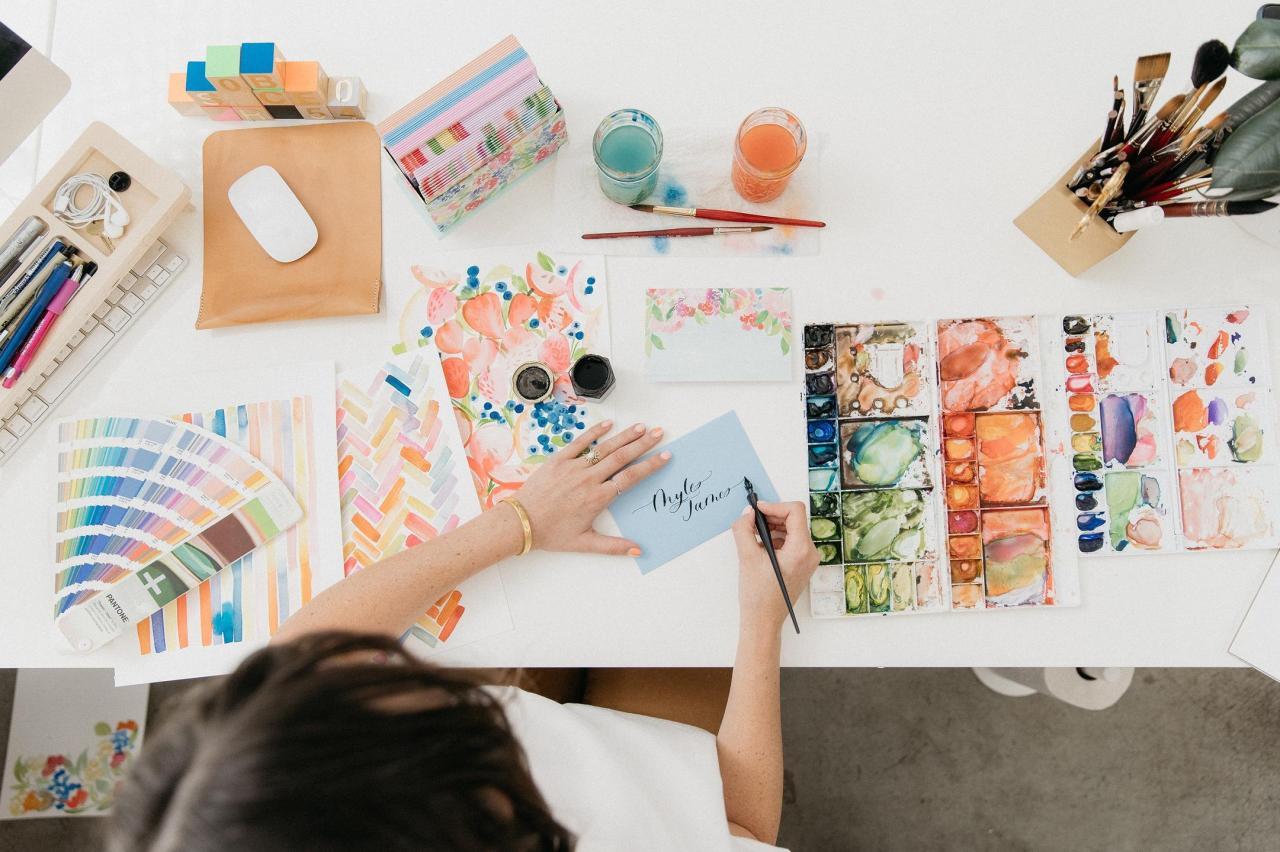
Digitizing watercolor paintings goes beyond simply capturing colors; it involves preserving the unique tactile qualities and nuances that make each artwork special. This section delves into how these subtle textures translate into the digital realm, ensuring your prints faithfully represent the original piece. Understanding these elements helps in achieving a high-fidelity digital reproduction.Successfully digitizing watercolor art means meticulously capturing the interplay of pigment, water, and paper.
The goal is to translate the physical characteristics of the artwork, such as the tooth of the paper, the subtle granulation of pigments, and the soft transitions of washes, into a digital format that can be faithfully reproduced. This requires careful attention to lighting, resolution, and post-capture editing to ensure the digital file embodies the spirit and texture of the original.
Capturing Watercolor Paper Texture
The texture of watercolor paper is a defining characteristic of the medium, contributing significantly to the artwork’s visual depth and tactile appeal. Successfully digitizing this texture involves ensuring that the paper’s surface, including its grain and subtle undulations, is accurately represented in the digital file. This is crucial for prints that feel as authentic as the original painting.Effective techniques for capturing paper texture include:
- Consistent, Diffused Lighting: Using soft, diffused lighting from multiple angles minimizes harsh shadows that can obscure texture. Side lighting can highlight the paper’s tooth, but it must be balanced to avoid creating distracting patterns.
- High Resolution Scanning or Photography: Employing a high-resolution scanner or camera is paramount. This allows for the capture of fine details, including the subtle bumps and valleys of the paper’s surface, which are essential for a realistic digital representation.
- Focus on the Surface: When photographing, ensure the focus is sharp and precisely on the surface of the paper. Even slight out-of-focus areas can lead to a loss of textural detail.
- Post-Processing Adjustments: Minor adjustments in editing software can enhance the visibility of texture without making it appear artificial. This might involve subtle sharpening or contrast adjustments.
Translating Washes and Layering Effects
Watercolor washes and layering are fundamental techniques that create depth, transparency, and luminosity in a painting. The digital capture process must be adept at preserving the smooth transitions of washes and the subtle build-up of color achieved through layering. This ensures that the digital file conveys the same sense of depth and atmospheric quality as the original.The translation of these watercolor characteristics into digital files can be observed in several ways:
- Smooth Gradations: Well-digitized washes will exhibit smooth, seamless gradations of color, without banding or abrupt shifts. This reflects the way water and pigment blend on the paper.
- Subtle Transparency: The delicate transparency of watercolor, where underlying layers show through, should be maintained. This is evident in the way colors interact and build upon each other in the digital file.
- Edge Quality: The soft or hard edges created by washes and layering techniques should be accurately rendered. This includes the subtle diffusion of color at the edges of wet-into-wet applications or the crispness of dry brush techniques.
- Granulation Effects: For pigments that granulate, the digital file should show this characteristic as a subtle, organic texture within the color, rather than a flat, uniform tone.
Visual Characteristics of a Well-Digitized Watercolor
A truly successful digitization of a watercolor painting retains the essence of the original artwork, making it difficult to distinguish from the physical piece at first glance. The visual characteristics of such a file are a testament to careful capture and meticulous editing, ensuring that the digital reproduction is not merely a copy, but a faithful extension of the artist’s vision.Key visual indicators of a well-digitized watercolor include:
- Accurate Color Representation: The colors in the digital file precisely match the original painting, including the subtle variations and nuances that are characteristic of watercolor pigments.
- Preservation of Brushstrokes and Paper Texture: The subtle textures of the watercolor paper and the visible texture of brushstrokes are clearly discernible, contributing to the artwork’s tactile quality.
- Luminosity and Depth: The digital file conveys the inherent luminosity and depth of watercolor, with colors appearing vibrant yet translucent, and the layering effects contributing to a sense of dimension.
- Absence of Digital Artifacts: There are no visible digital artifacts such as banding, pixelation, or unnatural sharpening that detract from the artwork’s organic feel.
- Consistent Tone and Light: The lighting and tonal range of the original artwork are faithfully reproduced, ensuring that highlights, mid-tones, and shadows appear natural and balanced.
“A well-digitized watercolor should evoke the same emotional response as the original, capturing not just the image, but the spirit and texture of the artwork.”
Common Pitfalls and How to Avoid Them
Even with the best intentions and equipment, the digitization process can present a few challenges. Understanding these common pitfalls is the first step to ensuring your beautiful watercolor artwork is faithfully represented in its digital form, ready for stunning prints. By being aware of potential issues and knowing how to address them, you can save time, frustration, and ensure the final printed product truly reflects the essence of your original painting.
This section will guide you through the most frequent mistakes encountered during watercolor digitization and provide practical solutions to overcome them.
Color Shifts and Inaccuracies
One of the most disheartening issues is when the digitized colors don’t match the original painting. This can happen due to various factors in the capture and editing stages, leading to prints that appear dull, oversaturated, or simply “off.”
- Ambient Lighting During Capture: Daylight can change color temperature throughout the day, and artificial lights often have a color cast. Using consistent, neutral lighting is crucial.
- Solution: Whenever possible, photograph or scan in a controlled environment with diffused, neutral lighting. If using natural light, aim for an overcast day for softer, more even illumination. Avoid direct sunlight, which can create harsh shadows and color shifts.
- Incorrect White Balance: The camera or scanner’s white balance setting can significantly alter the overall color tone of the image.
- Solution: Set your camera’s white balance manually using a gray card or a known neutral object in your shooting environment. In post-processing, use the white balance tools in your editing software to adjust the image to a neutral state, referencing a pure white or neutral gray area in your artwork.
- Monitor Calibration: An uncalibrated monitor will display colors inaccurately, leading you to make incorrect adjustments in your editing software.
- Solution: Invest in a monitor calibrator (like a Spyder or X-Rite device) and calibrate your display regularly. This ensures that the colors you see on your screen are as close as possible to the actual color values.
- Color Profiles: Different devices and software use different color profiles (e.g., sRGB, Adobe RGB, ProPhoto RGB). Inconsistent use can lead to color shifts.
- Solution: Understand the color space you are working in. For general web use and most printing, sRGB is common. For professional printing and wider color gamuts, Adobe RGB is often preferred.
Ensure your camera, editing software, and print service provider are all using compatible color profiles.
- Solution: Understand the color space you are working in. For general web use and most printing, sRGB is common. For professional printing and wider color gamuts, Adobe RGB is often preferred.
Loss of Detail and Texture
Watercolor paintings are renowned for their delicate textures, subtle washes, and fine details. Losing these elements during digitization can render the print flat and lifeless.
- Insufficient Resolution: Capturing your artwork at a low resolution will result in a pixelated image when enlarged for printing, obscuring fine details.
- Solution: Always capture your artwork at the highest possible resolution your scanner or camera allows. For printing, aim for a resolution of at least 300 DPI (dots per inch) at the intended print size. If scanning, use a high-quality flatbed scanner that can capture fine details.
If photographing, ensure your camera has a sufficient megapixel count and use a sharp lens.
- Solution: Always capture your artwork at the highest possible resolution your scanner or camera allows. For printing, aim for a resolution of at least 300 DPI (dots per inch) at the intended print size. If scanning, use a high-quality flatbed scanner that can capture fine details.
- Over-Sharpening: While sharpening can enhance detail, overdoing it can introduce artifacts, halos, and an unnatural, “crunchy” look, especially to delicate watercolor textures.
- Solution: Apply sharpening judiciously. Use the “Unsharp Mask” or “Smart Sharpen” filters in your editing software and preview the effect at 100% zoom. Aim to enhance existing detail rather than creating artificial edges. It’s often better to under-sharpen and let the print shop handle final sharpening if needed.
- Incorrect Focus (Photography): If photographing, a slightly out-of-focus image will lead to a loss of crispness and detail.
- Solution: Ensure your camera is perfectly focused on the artwork. Use a tripod to maintain stability and a remote shutter release or timer to avoid camera shake. If using autofocus, carefully select the focus point on a detailed area of your painting.
- Scanner Bed Dust and Debris: Even small specks of dust on a scanner bed can appear as significant blemishes in the digitized image, obscuring details.
- Solution: Meticulously clean your scanner bed with a lint-free cloth and compressed air before each scan. Gently dust your artwork itself if necessary.
Banding and Gradation Issues
Smooth color transitions and subtle gradients are hallmarks of watercolor. Banding, where distinct steps appear in what should be a smooth gradient, can ruin this effect.
- Low Bit Depth: Capturing or saving your image in an 8-bit color depth can limit the number of colors available, leading to banding in smooth areas.
- Solution: Whenever possible, work with 16-bit images during the editing process. This provides a much wider range of color information and significantly reduces the likelihood of banding. Save your final print-ready file in a format that supports 16-bit color (like TIFF).
- Aggressive Compression: Saving your image in highly compressed formats like low-quality JPEGs can introduce banding and loss of subtle tonal variations.
- Solution: Use lossless file formats like TIFF for your master files and for sending to a professional printer. If you must use JPEG for web previews, save at the highest quality setting (e.g., 10-12 in Photoshop).
- Editing Artifacts: Certain editing techniques, especially those involving significant contrast adjustments or color manipulation on 8-bit images, can induce banding.
- Solution: Perform major adjustments on 16-bit files. Use subtle adjustments and layer masks to build up changes gradually. If banding appears, you can sometimes mitigate it with noise reduction or dithering filters, but it’s best to prevent it from occurring in the first place.
Preventative Measures for a Smooth Workflow
Proactive steps are key to a successful digitization and printing process. By establishing good habits and performing regular checks, you can minimize the chances of encountering problems.
- Create a Workflow Checklist: Document your process from capture to final file preparation. This ensures consistency and helps you remember critical steps.
- Example Checklist Items:
- Artwork prepared (clean, flat).
- Lighting setup checked (consistent, neutral).
- Camera/scanner settings confirmed (resolution, file format).
- White balance set correctly.
- Focus checked (photography).
- Test capture taken and reviewed.
- Image imported into editing software.
- Monitor calibrated.
- Working in 16-bit color depth.
- White balance adjusted.
- Exposure and contrast corrected.
- Color correction applied.
- Detail enhancement (sharpening) applied judiciously.
- Banding checked and addressed.
- File saved as TIFF (16-bit) as master.
- File converted to sRGB or Adobe RGB as needed.
- Final print-ready file exported at correct resolution.
- Example Checklist Items:
- Perform Test Prints: Before committing to a large print run, always order a small test print. This is the most effective way to catch color inaccuracies, detail issues, or banding that might not be apparent on your screen.
- Action: Send a small section of your artwork or a full-size proof to your chosen print service. Compare it meticulously against your monitor and the original artwork.
- Communicate with Your Print Provider: Discuss your artwork’s characteristics and your desired print quality with your print shop. They can offer valuable advice on file preparation and potential issues specific to their printing process.
- Example: “I’m sending you a watercolor scan, and I want to ensure the subtle washes and granulation are preserved. What file format and color profile do you recommend for optimal results on your fine art paper?”
- Maintain Original Artwork Care: Protect your original watercolor paintings from dust, light, and moisture. The better the condition of your original, the easier it will be to capture it accurately.
- Regular Software and Hardware Checks: Ensure your editing software is up-to-date and that your scanner or camera is functioning correctly.
Summary
By diligently following these guidelines, you will be well-equipped to transform your watercolor masterpieces into stunning, high-fidelity prints. The process, while detailed, is designed to be accessible, ensuring that the unique textures and vibrant colors of your original artwork are faithfully preserved in their digital form and subsequent printed reproductions. Embrace the potential of digitization to share your watercolor art with a wider audience and ensure its longevity.